
Report Generator
Turn exported grandMA2/3 patch, sequence and timecode XML into CSV, XLS or PDF reports.
What it does
Section titled “What it does”- Exports to three formats
Write your showfile data as CSV, XLS or PDF, ready for paperwork, handovers or the archive. - Handles several items at once
Import one XML file, look through everything in it, and export it all in one go. - Lets you shape the output
Pick the fields for each export, choose portrait or landscape for PDFs, and split an XLS into one sheet per item.
How to use it
Section titled “How to use it”- Get the data into the tool:
- Straight from the console: click Import from grandMA2/3 Console, then set the console
mode, the IP address, the pool type (Sequence, Timecode or Patch) and the IDs you want — for
example
1 + 5 Thru 8. The tool runs the export on the console and loads the result, so no USB drive is involved. The console needs its remote interface switched on first — see Console Connection. - From a file instead: select a USB drive and export the XML from your showfile, then click Import grandMA2/3 XML File and pick the
.xmlfile.
grandMA2: run “Export Sequence (number)” or “Export Timecode (number)”, or use Setup > Patch > Export.
grandMA3: use Settings > Show Creator > Export or Settings > Patch > Export.
You can also drag the .xml file straight onto the window. - One XML file can hold several items. The tool works out the data type on its own and shows how many items and lines it found.
- Straight from the console: click Import from grandMA2/3 Console, then set the console
mode, the IP address, the pool type (Sequence, Timecode or Patch) and the IDs you want — for
example
- Check and set up:
- Use the Preview Item dropdown to look through the items.
- Set the options for the format you want.
- Export the report:
- Choose CSV, XLS or PDF.
The screen explained
Section titled “The screen explained”Import
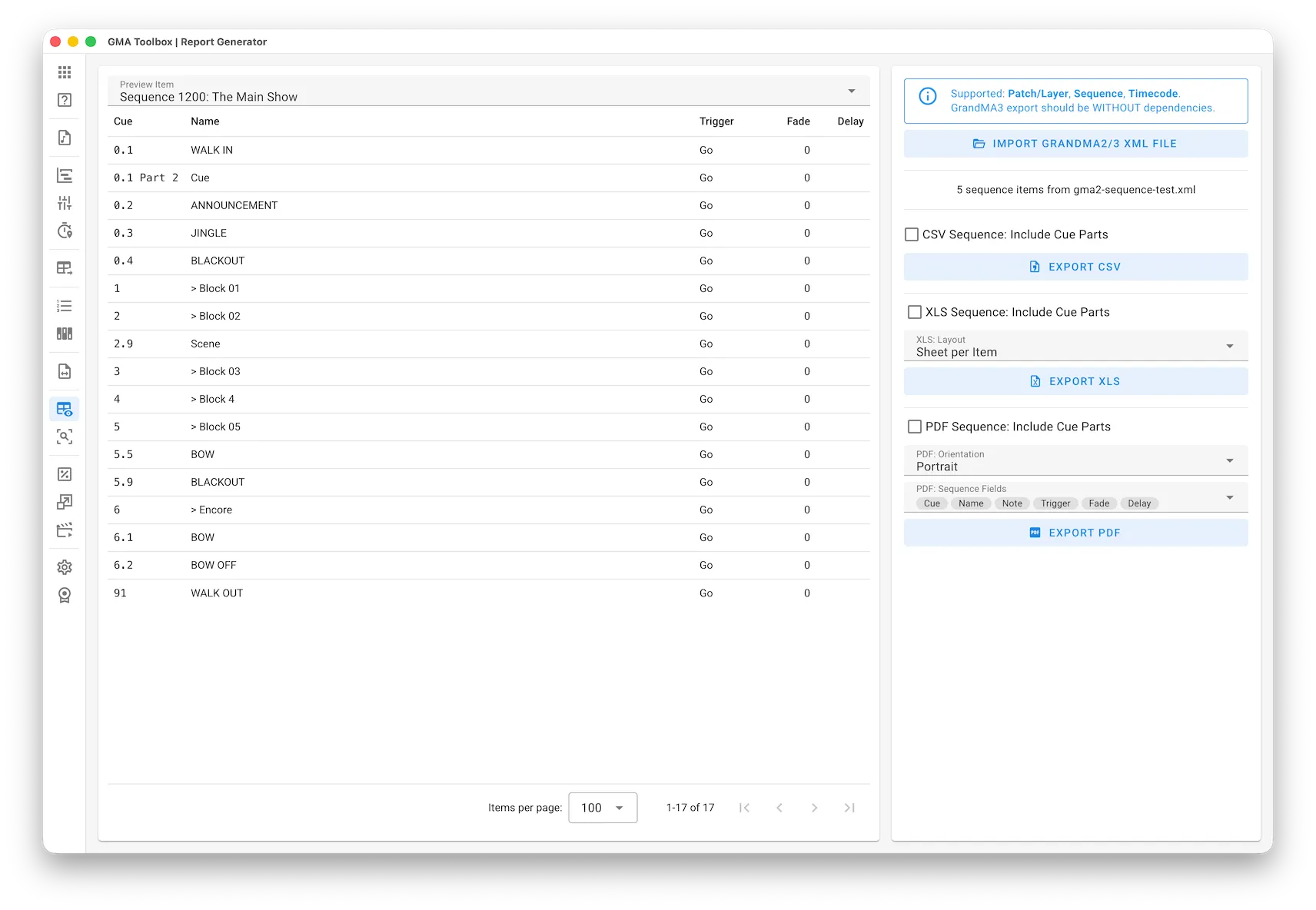
Section titled “Import”- Import grandMA2/3 XML File: opens a file picker for a grandMA2 or grandMA3 XML export. It reads Patch/Layer, Sequence and Timecode files, and one file can hold several items.
Table columns
Section titled “Table columns”- Preview Item: the item shown in the table.
- The other columns change with the type of data you imported.
- CSV Sequence: Include Cue Parts: writes cue parts as their own rows.
- Export CSV: saves a
.csvfile with every imported field, using your delimiter.
- XLS Sequence: Include Cue Parts: writes cue parts as their own rows.
- XLS: Layout: Single Sheet puts every item on one sheet. Sheet per Item gives each item its own sheet.
- Export XLS: saves a
.xlsxfile with every imported field.
- PDF Sequence: Include Cue Parts: writes cue parts as their own rows.
- PDF: Orientation: Portrait or Landscape.
- PDF: Fields: the columns that go into the PDF.
- Export PDF: saves a
.pdffile with one section per item.