
Preset Mode Converter
Convert presets between grandMA2 and grandMA3 showfiles in both directions, through XML import and export.
What it does
Section titled “What it does”- Converts presets in both directions
Move presets from grandMA2 (Mode 2) to grandMA3 (Mode 3) and back, so you can work on either console. - Handles every preset type
Position and focus presets above all, which saves you focusing the rig twice. - Lets operators share presets at a festival
The house LD focuses in one mode, the guest LDs work in the other, and everyone uses the same positions.
How to use it
Section titled “How to use it”- Get the presets into the tool:
- Straight from the console: click Import from grandMA2/3 Console, then set the console
mode, the IP address, the pool type (Preset) and the IDs you want — for
example
1 + 5 Thru 8. The tool runs the export on the console and loads the result, so no USB drive is involved. The console needs its remote interface switched on first — see Console Connection. - From a file instead: select a USB drive, then run “
Export Preset (number)” or use grandMA3 Settings > Show Creator > Export to write the presets as XML. Import XML File reads that file.
You can also drag the .xml file straight onto the window. - One XML file can hold several presets.
- Straight from the console: click Import from grandMA2/3 Console, then set the console
mode, the IP address, the pool type (Preset) and the IDs you want — for
example
- Check the data:
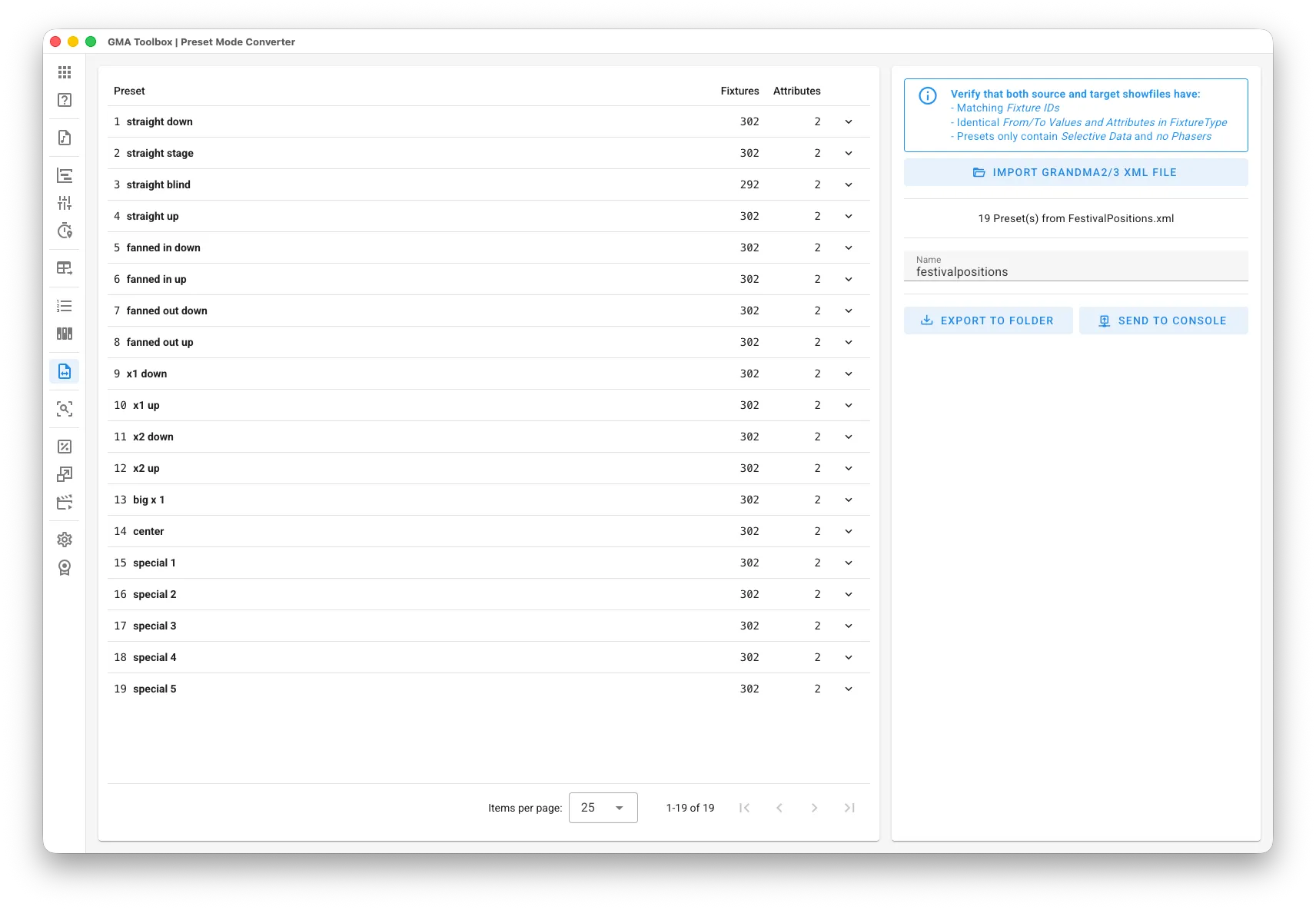
- Look through the list of presets the tool found and make sure it is right.
- Export the presets:
- Manual import: save the presets to a grandMA2 or grandMA3 folder, then import them on the console.
- Direct import: send the presets straight to the console. The console asks you to pick the first preset ID. Needs the console's remote interface — see Console Connection.
The screen explained
Section titled “The screen explained”Export
Section titled “Export”- Name: the name of the exported preset file.
- Convert Feature/Attribute Names: translates the attribute names between Mode 2 and Mode 3. For example, “COLORRGB1” in Mode 2 becomes “ColorRGB_R” in Mode 3, and the other way round.
Table columns
Section titled “Table columns”- Preset: the name of the preset.
- Fixtures: how many fixtures the preset holds.
- Attributes: how many attributes the preset uses.
- Arrow icon: opens the details of the preset.