
Macro Generator
Turn a data table into grandMA macros using your own templates, so repetitive command typing becomes a single export.
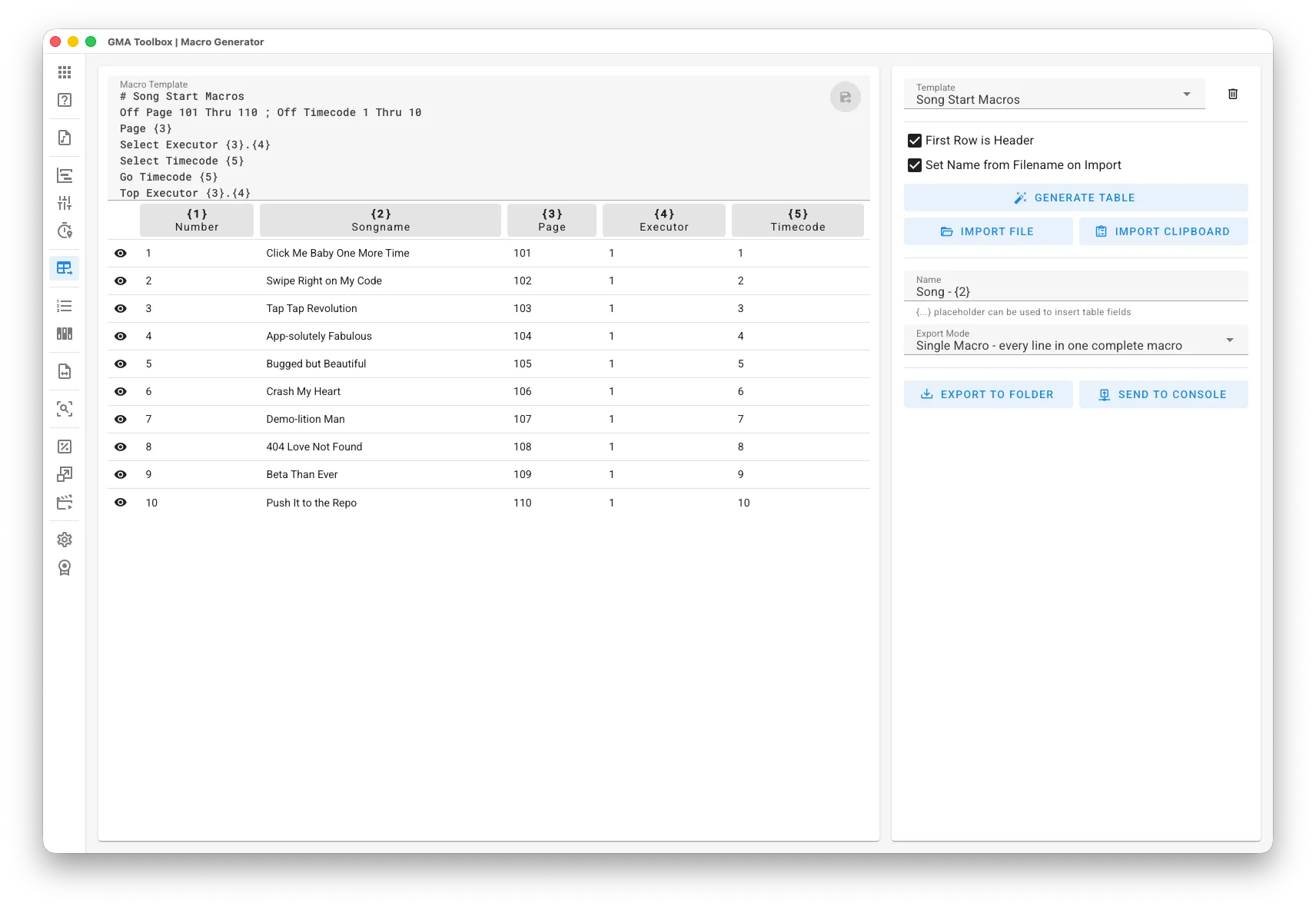
What it does
Section titled “What it does”- Builds macros from a template
Import a table, apply a template, and get either one macro that holds every row or a separate macro per row. - Calculates while it writes
Put expressions in the template to do maths, pick values with conditions and reformat text, so the table stays simple and the template does the work. - Keeps your templates
Save templates and load them again, so the same job always produces the same result. - Covers everything from presets to show setup
Build rehearsal macros that switch pages and executors per song. Build XYZ preset macros from position data, patch fixtures to DMX addresses, or write cuelists with commands inside them.
How to use it
Section titled “How to use it”- Prepare your data:
- Build your table in Excel or any other program, with one column per field you need.
- Import the data:
- Set the import options first.
Set the delimiter and the column names on the Settings page. To check the format of your file, open it in a text editor and read the first line. - Import File reads a CSV file. Import Clipboard pastes from Excel and similar programs.
You can also drag a .csv file straight onto the window.
- Set the import options first.
- Write the macro template:
- Create, load and save the template you need.
- Use placeholders to pull in your data.
{0}is the current row number.
{1},{2},{3}and so on are the columns. - For anything beyond a plain value, write an expression in double braces, such as
{{Col3|pad(3)}}. - Lines that start with “
#” are ignored.
- Set the export options:
- Give the macros a name. For individual macros, put a placeholder in the name to pull in table data.
- Choose the export mode: one macro with every row, or one macro per row.
- Export the macros:
- Manual import: save the macros to a grandMA2 or grandMA3 folder, then import them on the console.
- Direct import: send the macros straight to the console. The console asks you to pick the first macro ID. Needs the console's remote interface — see Console Connection.
The screen explained
Section titled “The screen explained”Import
Section titled “Import”- First Row is Header: treats the first row as the column titles, and leaves it out of the macros.
- Set Name from Filename on Import: fills the export Name field from the name of the imported file.
Export
Section titled “Export”- Name: the macro name. Add a placeholder to pull in table data when you export individual macros.
- Export Mode: one macro holding every row, or one macro per row.
- Macro Line Wait: the wait time of every macro line, in seconds. The default is
0.01. Leave it empty for Follow. - Treat Text after // as Info/Note: everything after
//on a template line becomes the info of that macro line instead of part of the command. Write\/\/if you need a literal//. Inside an expression,//is still the division operator.
Table columns
Section titled “Table columns”- Columns: the column title. Click it to drop its placeholder into the template at the cursor.
- Rows: one row per data entry.
- Eye icon: shows a preview of the macro built from that row.
Write expressions in your template
Section titled “Write expressions in your template”Placeholders insert a value as it is. An expression can calculate with it, choose between values, and reformat it — so your table can stay simple.
Write an expression in double braces:
Four rules cover most of it:
- Names are not case-sensitive.
{{Col1}},{{col1}}and{{COL1}}are the same. - Spaces inside the braces are fine:
{{ Col1 | upper }}. - A line can hold as many expressions as you like.
- An expression that fails, or uses a name the tool does not know, is left in the output untouched.
The app carries the full reference: click the help icon next to the template editor to open Template Syntax, which lists every operator and filter with a worked example.
What you can refer to
Section titled “What you can refer to”| Write this | Meaning |
|---|---|
Col1…ColN | the columns of the current row |
RowIndex | the row number, starting at 0 — add 1 to count from 1 |
Col0 | the same as RowIndex |
| a header name | the column with that header, for example {{CueName}} |
Header names become identifiers by keeping only letters, digits and underscores, so “Cue Name” becomes CueName and “X-Pos” becomes XPos. A header starting with a digit gets an underscore, so “1st” becomes _1st. Headers are skipped when they clash with Col1…ColN or RowIndex, or when an earlier header already used the name.
Hover a column button above the table to see the exact names for that column.
How values are read
Section titled “How values are read”Cells that look like numbers — 5, -3, 1.25 — are treated as numbers, so maths and comparisons work on them.
Cells like 001 or 1.10 keep their text and are inserted exactly as typed. Maths and comparisons still read them as numbers.
Write text in double or single quotes: "Cue" or 'Cue'. The case is kept as written.
Operators
Section titled “Operators”The following examples assume a first row with the headers “Cue Name”, “Value”, “Number” and “Note”, holding intro song, 12.345, 007 and an empty cell.
| Operator | What it does | Example | Result |
|---|---|---|---|
+ - * / | add, subtract, multiply, divide | {{Col3 + 1}} | 8 |
+ | joins text when one side is not a number | {{Col1 + "!"}} | intro song! |
// | division rounded down | {{7 // 2}} | 3 |
% | remainder | {{7 % 3}} | 1 |
^ | power | {{2 ^ 10}} | 1024 |
== != < > <= >= | comparison | {{Col3 == 7}} | true |
&& || ! | and, or, not | {{Col2 > 10 && !(Col3 > 10)}} | true |
in | text contains, or list contains | {{"song" in Col1}} | true |
( ) | grouping | {{(Col3 + 1) * 2}} | 16 |
Conditions
Section titled “Conditions”| Write this | What it does | Example | Result |
|---|---|---|---|
cond ? a : b | a when the condition is true, otherwise b | {{Col2 > 100 ? "High" : "Low"}} | Low |
value ? value : b | a fallback for an empty cell | {{Col4 ? Col4 : "Unnamed"}} | Unnamed |
value ?: b | the short form of that fallback | {{Col4 ?: "Unnamed"}} | Unnamed |
Conditions can be combined (cond1 || cond2 ? a : b) and nested (cond ? a : cond ? b : c).
Transformations
Section titled “Transformations”Apply a transformation with a pipe: value|name, or value|name(arguments). Chain as many as you need — {{Col1|trim|upper}} — and the names are not case-sensitive.
| Transformation | What it does |
|---|---|
upper | upper case |
lower | lower case |
capitalize | upper-cases the first character |
trim | removes spaces at both ends |
pad(length, char = "0") | pads on the left to that length |
padEnd(length, char = " ") | pads on the right to that length |
round(decimals = 0) | rounds to that many decimals |
fixed(decimals = 0) | rounds and keeps trailing zeros |
int | cuts off the decimals |
floor | rounds down |
ceil | rounds up |
abs | removes the sign |
replace(search, replacement) | replaces every occurrence |
default(fallback) | a fallback for an empty value |
prefix(text) | puts text in front |
suffix(text) | appends text |
len | the number of characters |
Single-brace placeholders still work
Section titled “Single-brace placeholders still work”{0} is the row number starting at 0, {1} the first column, {2} the second, and so on. Nothing about them changed, and you can mix both styles in one template.
They are replaced after the expressions. A single-brace name such as {Col1} is not recognised — use double braces for names.
Manage templates
Section titled “Manage templates”- Save a template: click the save icon in the template editor.
- Load a template: pick it from the Template dropdown.
- Delete a template: click the delete icon next to the dropdown.
Three settings can live in the template itself:
| Write this at the start of a line | What it does |
|---|---|
# followed by a name (first line) | names the template |
# Name = ... | sets the export name |
# Mode = single | exports one macro holding every row |
# Mode = individual | exports one macro per row |
Generate a table
Section titled “Generate a table”Sometimes you only need a run of numbers instead of imported data.
- Click Generate Table.
- Enter the First Item and Last Item numbers. Reverse the order if you need to.
- Enter the Item Text. Use
{0}for the current row number.